There are multiple criteria from which to choose when creating a prospecting list in LocalLook. To get started, select the Prospecting tab at the top of the page after you have logged in.
You may choose to search broadly by using the map tools to draw a shape around a specific area on the map. You can use the map tools along with the additional criteria on the left, or you may begin your search using only the criteria on the left. Here is a video tutorial to help guide you through these steps as well.
Using the Map for Prospecting
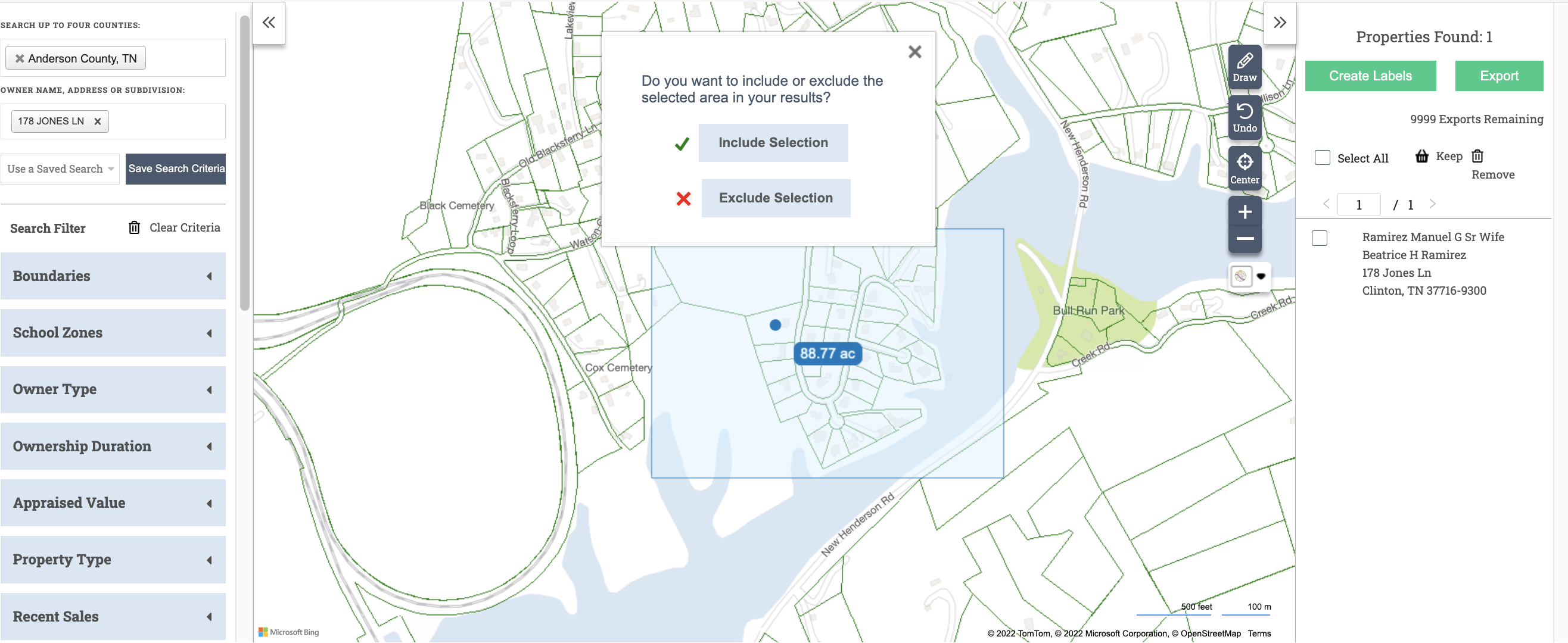
To use the map, click on the drawing tool on the map and draw a shape around your search area. If you wish to search around a specific property, type the name of the county in the county field and then type the address or owner name in the field under “Owner Name, Address or Subdivision” in the upper left. Then, using the drawing tools, create a shape around the property address to include the properties you’d like to prospect. Use the +/- symbol to narrow or broaden the map area.
Once you’ve drawn the shape, select Include Selection. Once selected, remove the owner name or address from the “Owner Name, Address or Subdivision” field to view all the properties in your selection. You may draw multiple shapes on the map to include all the properties you wish to prospect.
From here, you may use the criteria on the left to include or exclude various property characteristics from the list generated by the map shapes.
Using the Property Search Criteria
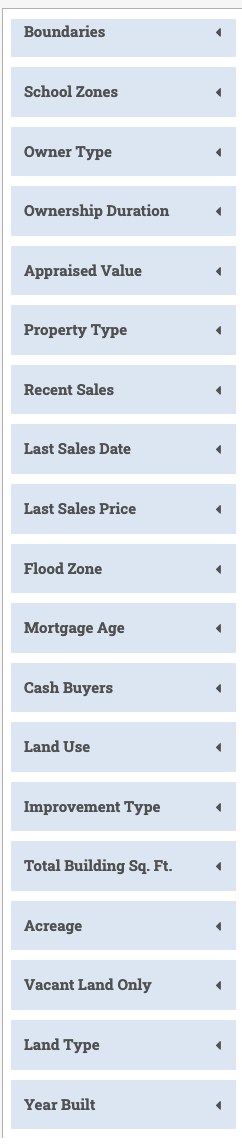
To begin a search using only the criteria, start by entering the county or counties you wish to search in the upper left field. You may select up to four counties at one time. To create the desired prospecting list, refine your search using the criteria on the left under the county search field.
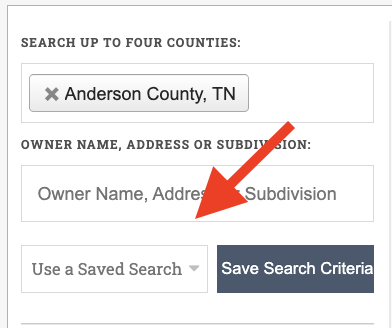
If you have saved criteria from a previous search, simply select Use a Saved Search, and your saved searches will be available.
Exporting a List
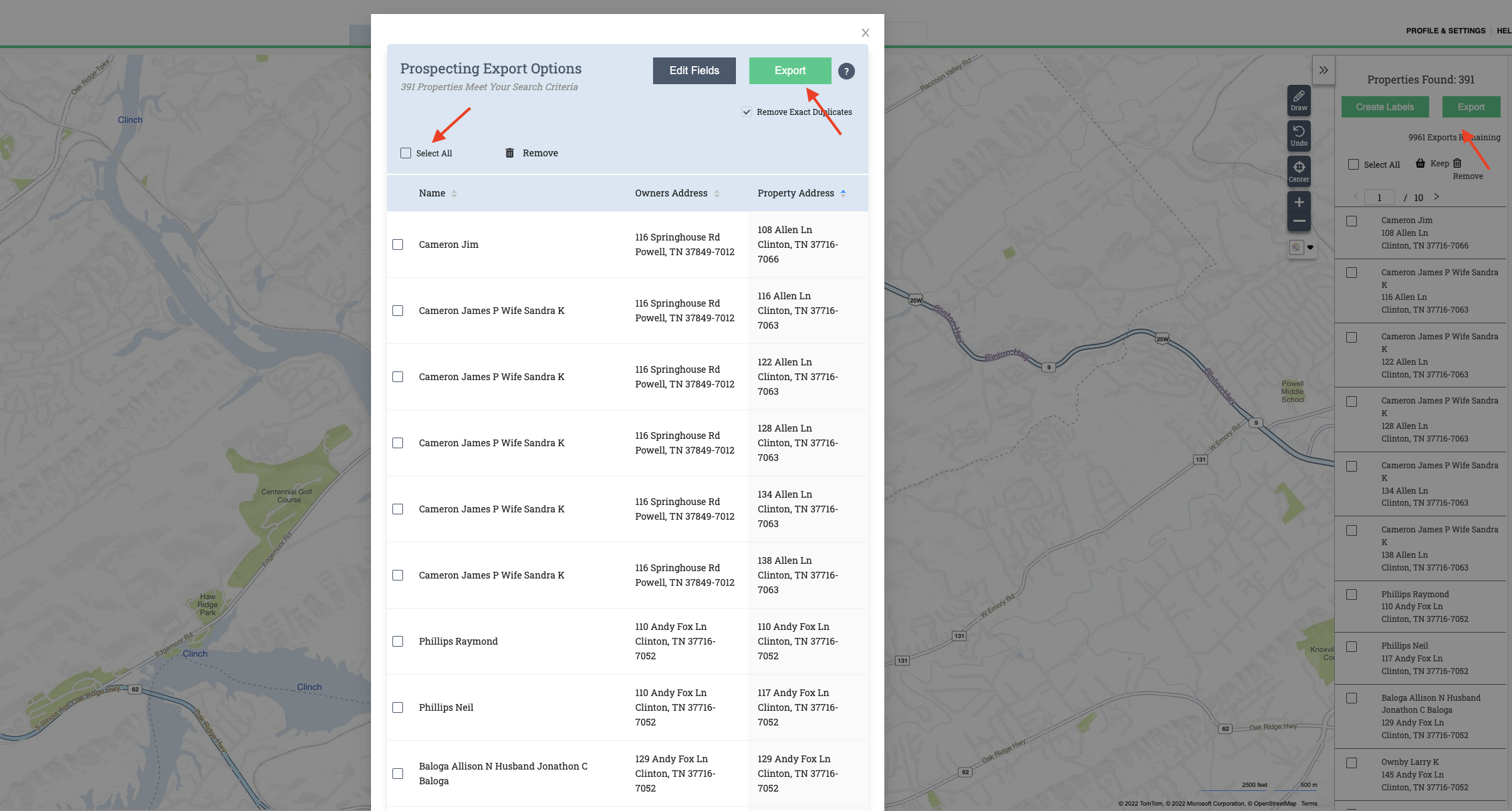
To export the complete list of properties, click the green Export button in the upper right corner of the screen. From here, check Select All and then click on the green Export button. This will automatically download a CSV file and save it to your device’s designated downloads folder.
If you wish to remove certain properties from the list before exporting, check the box next to the property name(s) and click Remove.
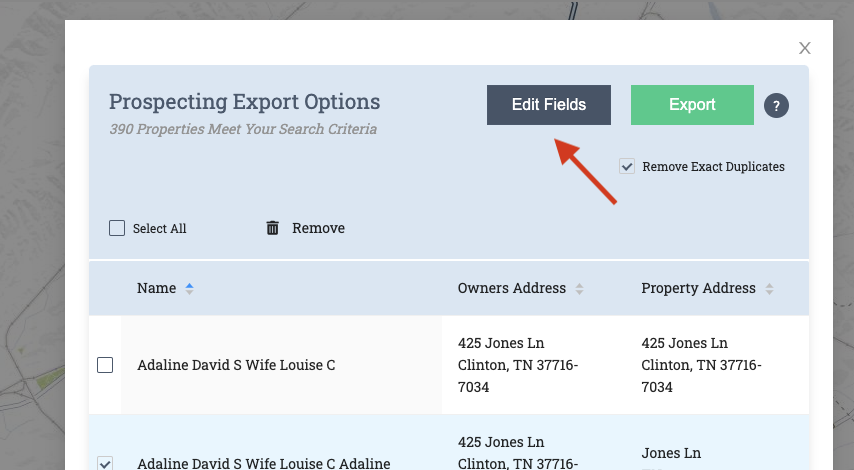
You may also edit the fields that appear on your list prior to downloading. To do this click the Edit Fields button next to Export and select or deselect the fields prior to exporting.
Creating Mailing Labels
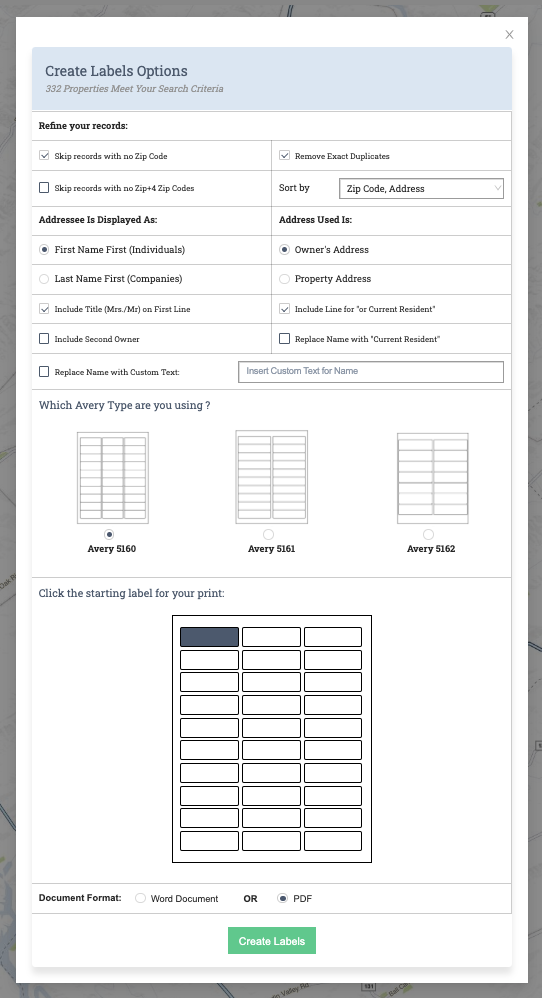
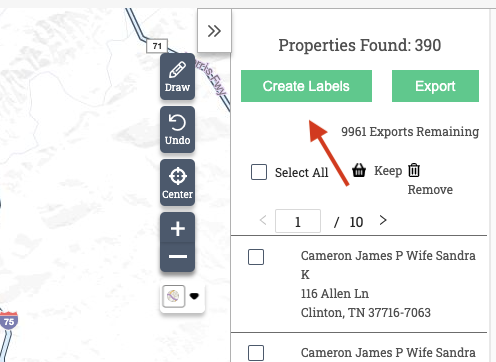
You may create customized mailing labels directly from the Prospecting tab. After you have identified the properties you wish to prospect, click Create Labels in the upper right corner of your screen.
From here, make selections to refine how you would like your labels to be addressed as well as the specific label type. Then, click Create Labels at the bottom of the window.