When viewing a large map in LocalLook, you see a more detailed view of a property’s surrounding area. Our maps provide a variety of layers and tools that give you additional information about the area like recent sales, flood zones, and more.
This article covers the following topics:
Map Layers
Let’s take a detailed look at the layers available to you. Start by selecting Change Layers option on the left side of the map. The CRS Map Layers will expand showing you the map layers available in the county you are working in. The map layers available for most counties are described below.
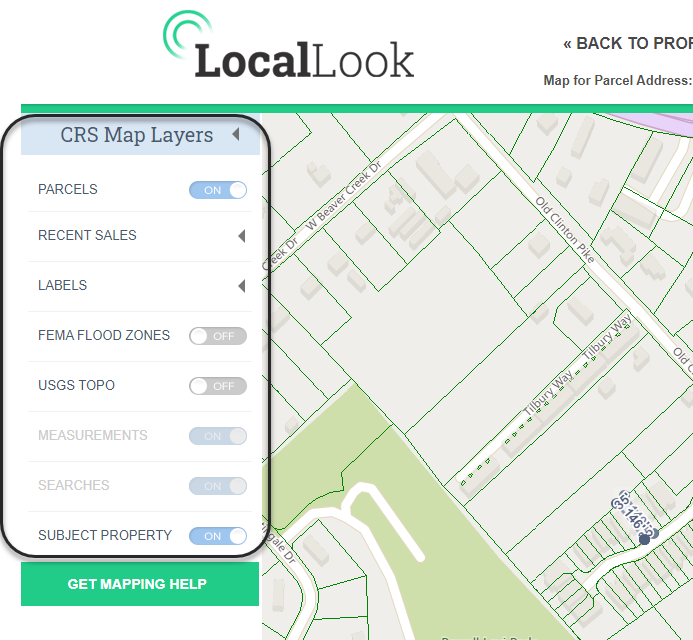
When a layer's on/off switch is unavailable, i.e. grayed-out, you need to either zoom in or out on the map to activate. Some map layers require you to zoom in closer while others require you to zoom out further.
Parcels
Show or hide the parcel (property boundary) lines on the map. This layer is on by default. The parcel layer is sourced by the county GIS department. See the About Property Lines and Boundaries article for more information about the parcel layer.
Recent Sales
Highlight properties that have sold within certain timeframes by turning on or off recent sales layers. A legend describing the different grouping and coloring is displayed at the bottom of the page when a recent sales layer is turned on.
Labels
See information about properties from a map view like owner name, property address, or last sale date and price.
Measurements
If you use any of the measuring tools on the map then you have the option to turn off those measurements using this switch. The layer is not available to turn on when you haven't measured anything.
Searches
If you have drawn any shapes (freehand, rectangle, radius, or polygon) on the map, you can hide the shapes by turning off the Searches layer.
Subject Property
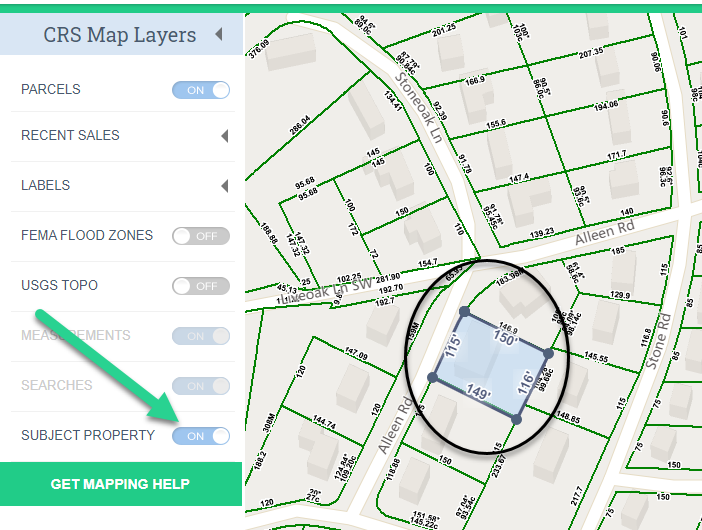
When viewing the large map from a Property Report, the Subject Property layer is an option. By default, this layer is on. To hide the subject property indicator simply select to turn it off.
Search Results
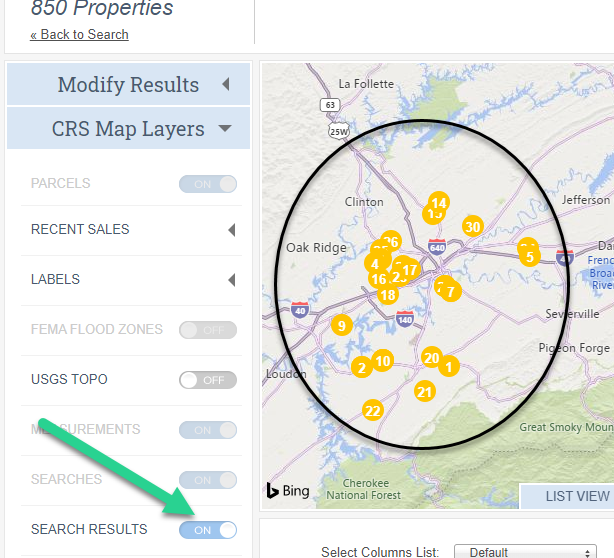
When viewing the map from the results page, the Search Results layer is an option. By default, this layer is on. To hide the result indicators on the map, simply turn this option to off.
Tools
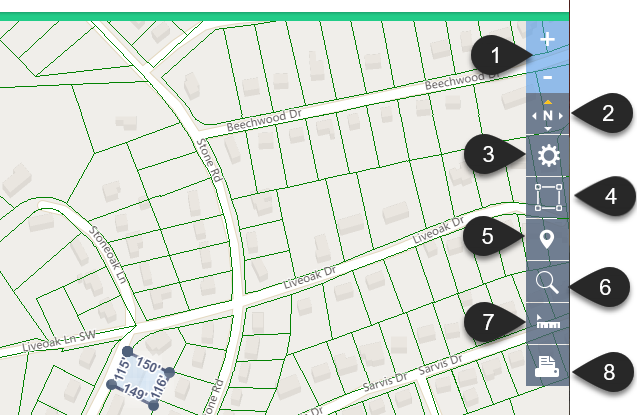
On the right side of the map, you will find a set of tools to help you use the map.
Zoom in and out
No. 1 in the image above.
Select the plus sign to zoom in and the minus sign to zoom out.
Compass icon
No. 2 in the image above.
The compass icon shows you the direction the map is facing. The orange arrow points north. When in Birdseye view, your view can be rotated, this is how you’ll know the current map view's orientation.
It's not doing anything!
The tool itself doesn’t do anything. Its purpose is to show which direction you are facing. If you switch to the Birdseye view then you are given two additional buttons to rotate the image. Again the actual button doesn’t do anything.
Map view
No. 3 in the image above.
Select the gear icon to see different types of map views available: Road, Aerial, Birdseye, and Streetside. When in Birdseye view you will see the arrow icons shown in the image below, use these to rotate the map view.
Birdseye view
The Birdseye is not available everywhere. Microsoft Bing is the source of this view and working to add it more areas. Once available, it will display as an option here.
Subject Property Indicator
No. 4 in the image above.
By default, your subject property indicator displays the parcel dimensions and is shaded. You can remove the shading and/or the dimensions with this tool. You can also set either of these off by default in your LocalLook settings. See the Setting your defaults article to learn how.
Re-center on the subject property
No. 5 in the image above.
If you have moved around on the map and would like to quickly re-position it back to your subject property, select the map location icon.
Searching Tool
No. 6 in the image above.
To search for properties from the map, select the magnifying glass icon and the shape to draw.
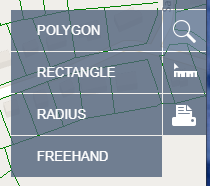
Polygon
Select Polygon when you need to draw a nonuniform shape to select your search area. This option is a good choice when you are searching specific neighborhoods.
Rectangle
Select Rectangle when you wish to draw a box to select your search area.
Radius
Select Radius when you wish to draw a circle to select your search area. This option is the best choice when you need to select all the properties within the radius of a location.
Freehand
Select Freehand when you prefer to draw a shape using your finger or stylus to define your search area.
Measuring Tool
No. 7 in the image above.
You can measure more than just distances on the LocalLook maps, select the ruler icon and choose the measurement type you need.
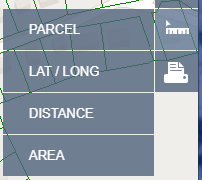
Parcel
Use the Parcel option to measure the boundary dimensions and area of a property. After you choose this option, select any property and LocalLook will calculate the dimensions of the property and its area.
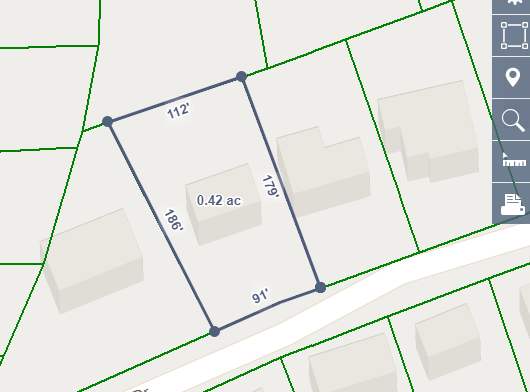
Lat/Long
Use the Lat/Long option to see map coordinates. Once you choose this option, move the pointer around on the to see the coordinates. If you want to capture the lat/long coordinates for a spot, select it. A pin will be placed on the map. Hoover over this pin to display with the coordinates of that location. To copy the coordinates, simply highlight them then use your keyboards copy command. You can also Delete or Move the pin by selecting the appropriate option in the infobox.
Distance
To measure a distance, select the ruler icon and choose Distance. Select your starting point, then move the line to any other point on the map to see how far apart they are. Click or tap once to change directions. Double-click or double-tap to finish measuring. To delete the measurement, hoover over the distance then select Delete in the infobox.
Area
Select the Area option to measure the area of the map. After choosing the Area tool, select your starting point, move the line to the next point on the edge of your area, then click or tap again. Continue adding connecting lines in this manner until you are back where you began to measure. Select the starting circle to finish your measurement. The area will display in the center of your measurement. To see the area's square feet and acreage or to delete the measurement, hoover over the area in the center.
Output Tool
No. 8 in the image above.
Select the output icon to Print, Email, Save, or Copy your current map view.
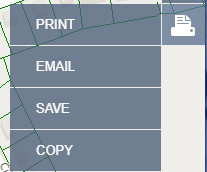
The Email and Save options will save your current map view in PDF format.
The Copy option will copy the image to your clipboard to be able to paste in supported apps.
The ability to print, email, save, or copy is not available when in Birdseye view. This is in compliance with Microsoft's Bing Map license.