Using the Map Search in the Advanced Search area, you can select an area to search by using the drawing tools within the map.
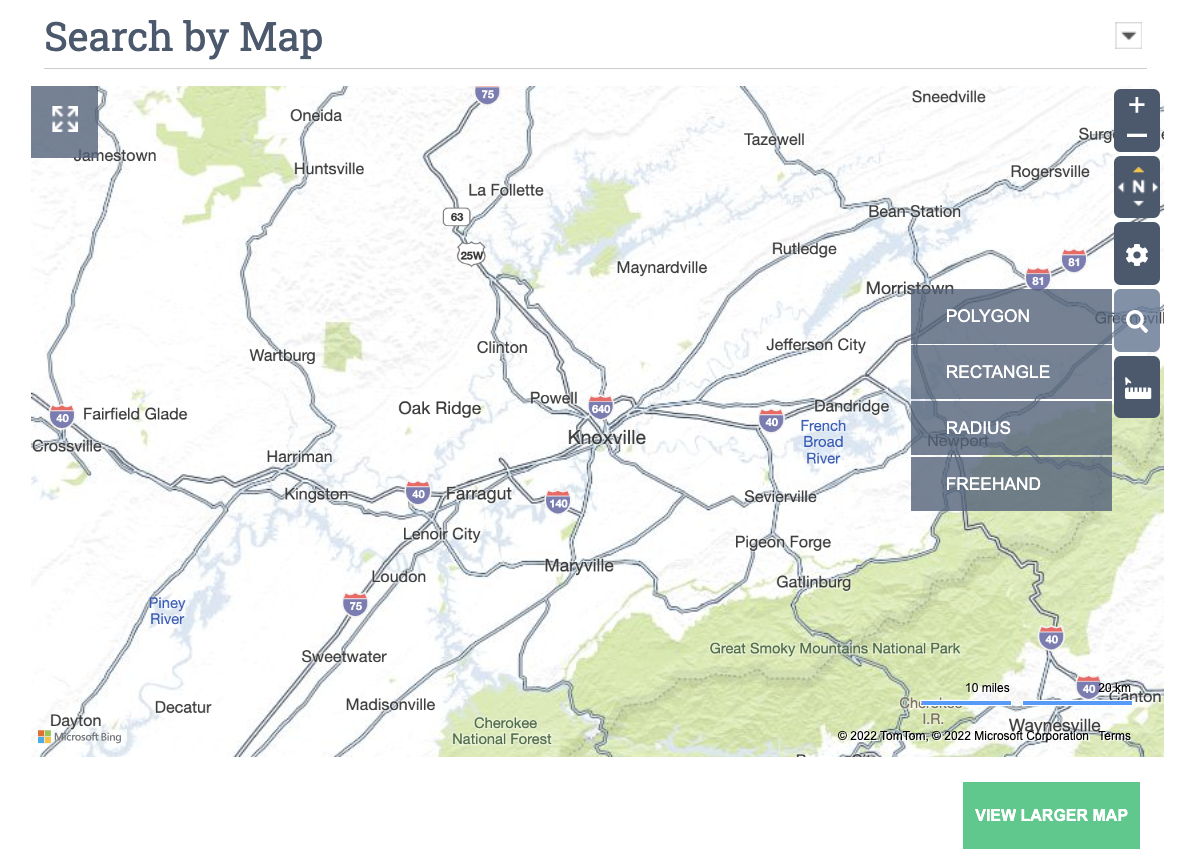
For example, to select the properties within a circular area, select the magnifying glass icon, then choose Radius. Click on an area on the map, drag the mouse to the distance desired, and then click again to set the circle.
Use the zoom in or out (+/-) symbol to pinpoint a specific area. You may also freehand draw the area, use the polygon or rectangle drawing tools to select the desired properties.
You can combine Map Search options by selecting more criteria using the Advanced Search features below the map, or simply click on the SUBMIT button in one of the sections below the map to see a list of properties in your drawn shape.
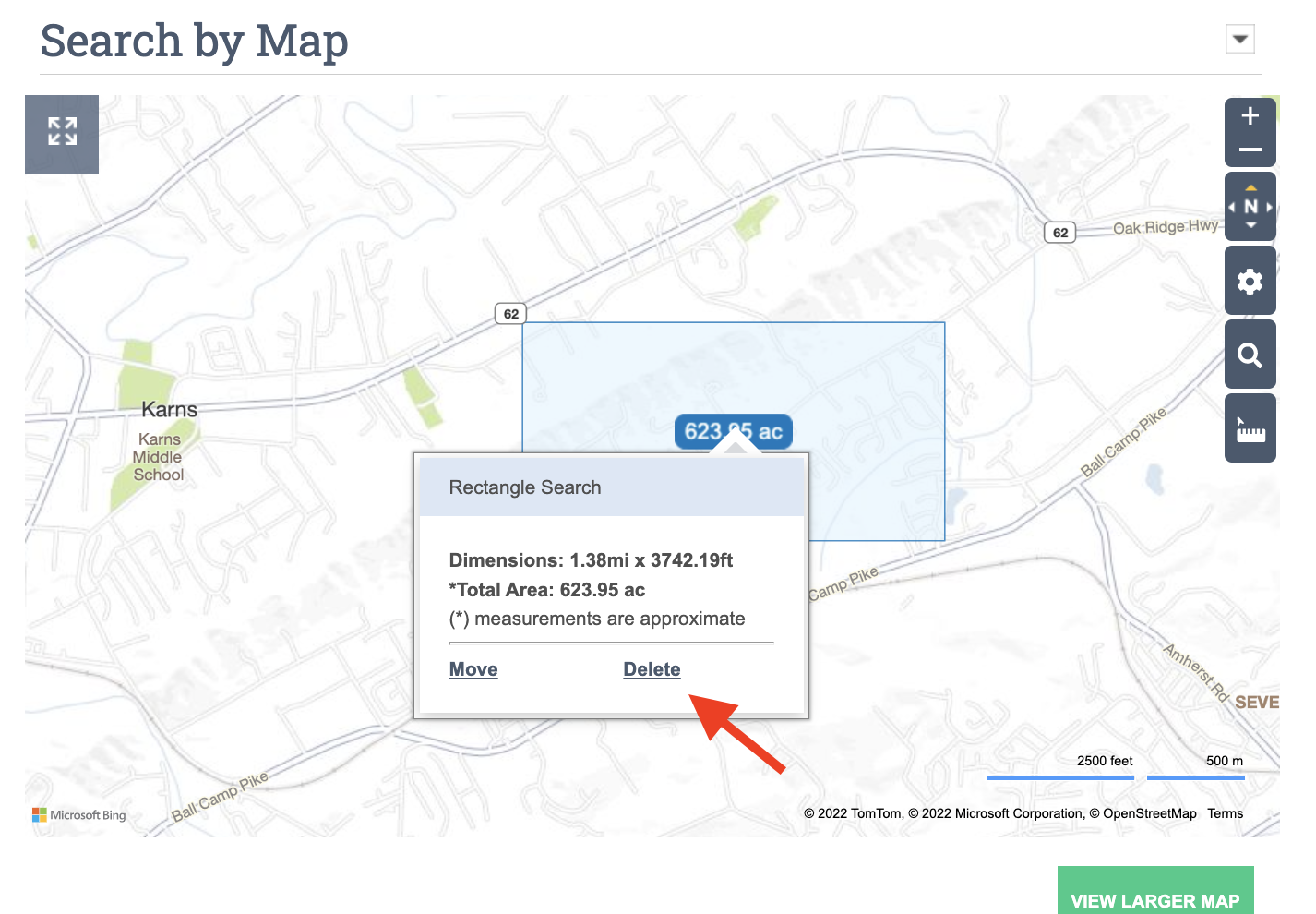
To move or delete and redraw your shape, click on the area/covered acreage in the center of the shape and click Move or Delete.